Welcome to the AWS Attack, Detect, Defend Workshop
Please take a few minutes to work through the following steps to get prepared for the workshop
Grab a Lab Number from the Front of the Room
Network Connection
Venue Wifi Details
SSID:
Password:
Slack
Step 1. Join Slack
Slack Link: workshop-slack.checksomebytes.com
Installation of Slack is not required, accessing it through the web browser will work just fine.
Step 2. Add Slack Channel
Slack Channel
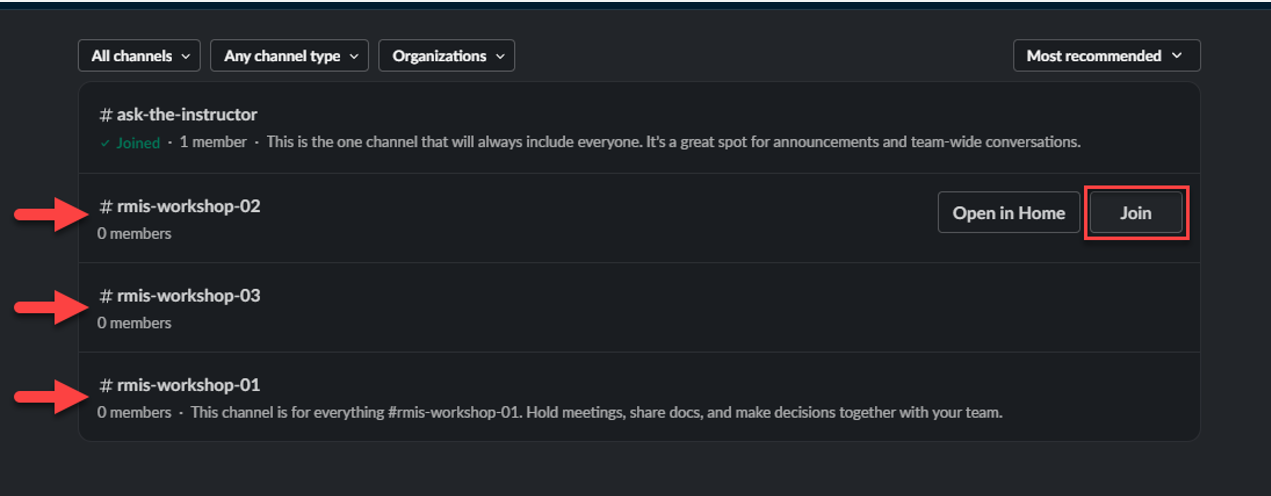
Join ONLY the workshop channel associated with your Lab Number
Click “+Add Channels”
Click “Browse Channels”
Screenshot
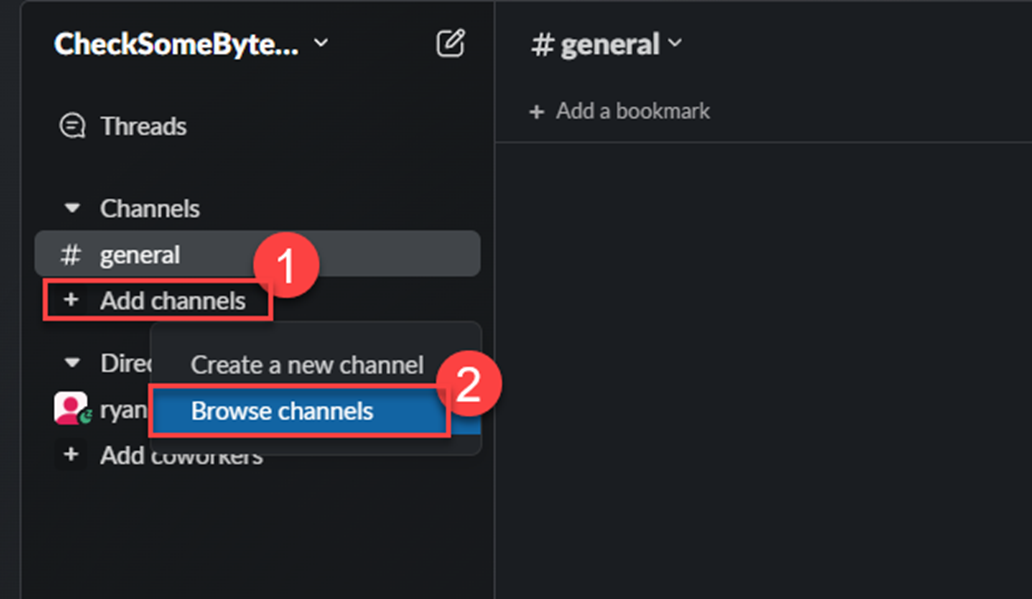
Select the proper channel that corresponds with your "Lab Number"
Screenshot
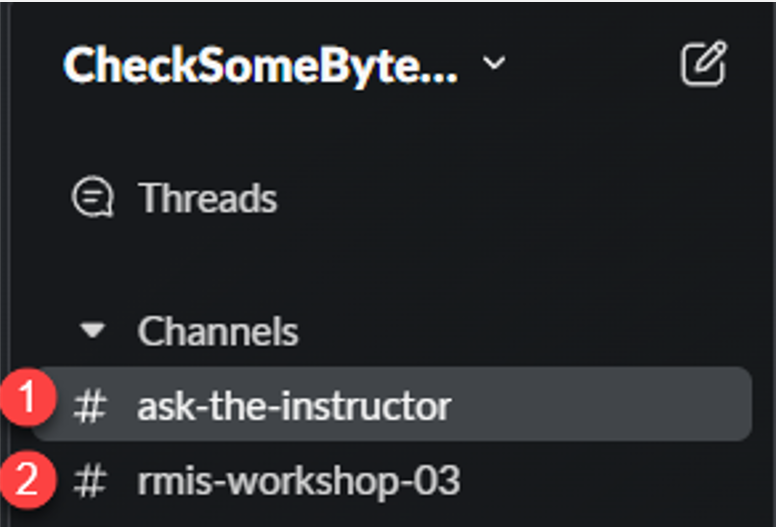
Step 3. Verify your Slack has the two channels
- ask-the-instructor
- workshop-XX
Screenshot
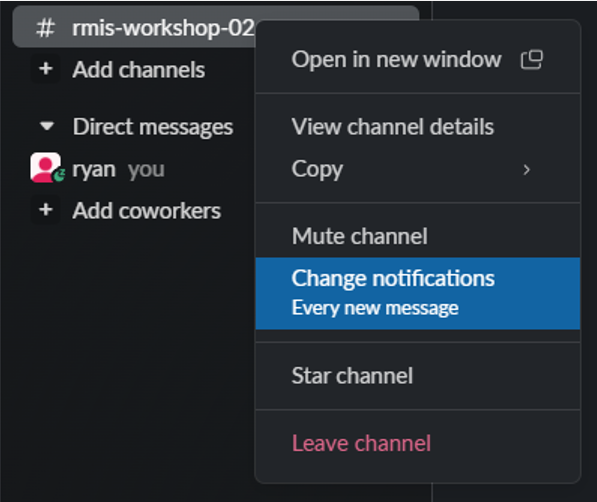
Step 4. Set notifications for your lab channel to “All new messages”
Screenshot
Verify Connectivity
Non-Venue Internet Connection
IF you are using a hot spot or some other "non-venue" wifi I will need to add your IP Address to the allow-list for the virtual machines.Please reach out to me directly via Slack to provide your Public IP Address so I can add it. To aquire your public IP, you can use What is my IP
Access Web Server
Access Attack Box
Attack Box Credentials
UserName: attack-box
Password: attack-box
60 second timeout
This terminal will timeout after 60 seconds if you do not login. Just reconnect to it and try again if this happens.
Install Burp Suite Community Edition (Suggested but Optional)
Optional
Installing Burp Suite is optional but will allow you to learn more about Server Side Request Forgery and walk through the steps a real attacker would take.
Step 1. Download Burp Suite
Step 2. Install Burp Suite
Install the application and make sure it launches successfully